Unreal Engine Plugin Settings
A guide on adding plugin settings to Project Settings in Unreal Engine using C++, and accessing them in Blueprints.
Unreal Engine Plugin Settings
Introduction
This blog post will detail how to add settings into an Unreal Engine project that show up in Project Settings using C++, and how to access those settings in Blueprints.
This will allow you to create configurable options for your plugins or game features that can be easily modified by designers or users without needing to change code.
TIP Why add plugin settings?
Adding settings to your plugin or game features allows for greater flexibility and customization. It enables users to tweak behavior, and is essential for user-friendly tools that may go on the marketplace and require configuration.
This post follows on from my previous post, where I show how to create an Unreal Engine plugin, so if you'd like to see how I went about doing that, check it out.
Editor Utility Widget setup
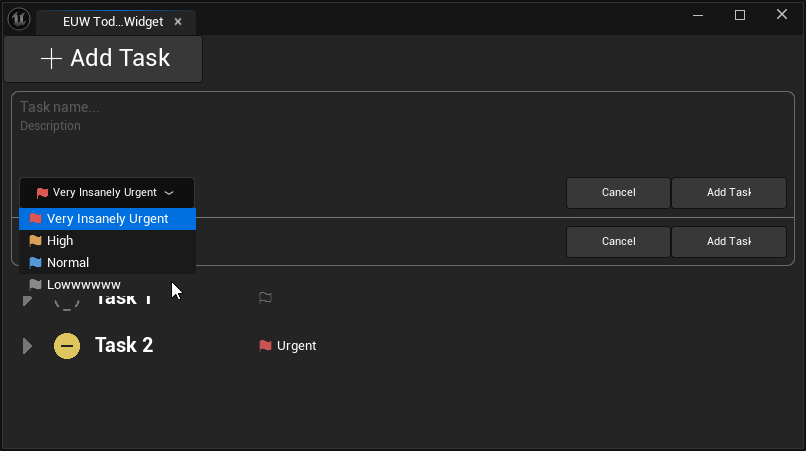
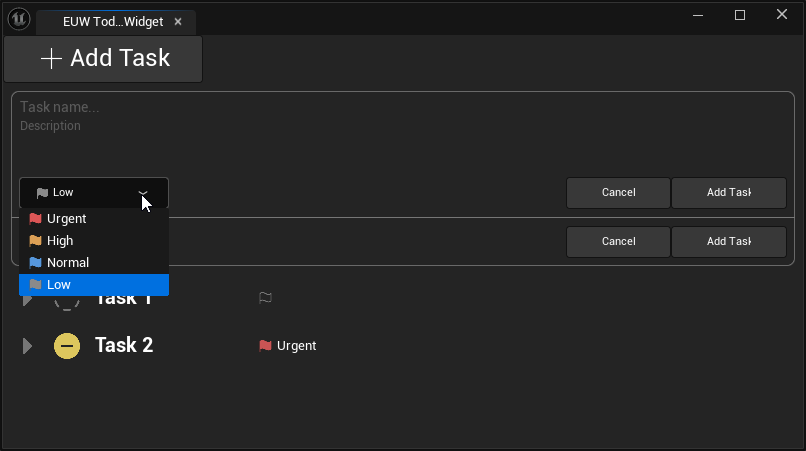
Before starting with the C++ settings, I've set up some logic in Blueprints in my plugin to show a series of priority levels for tasks.
Creating a settings class
To start, I set up a new class inheriting from UObject that will hold my settings.
For my use case, I want to have two sections of settings - one that will sync to source control for project-wide settings, and one that will be user-specific for local settings and will not sync to source control.
INFO Why two sections of settings?
Project-wide settings are useful for options that should be consistent across all users of the project, such as default values or behaviors. These will be stored in the project's config files and will be shared via source control.
User-specific settings are ideal for preferences that vary between users, such as UI customization or personal workflow choices. These settings will be stored in a separate config file specific to the user and will not be shared via source control if the project's .gitignore is set up correctly (as the user config file is stored in the Saved/Config/Windows directory). The default Unreal Engine .gitignore ignores the Saved folder.
The settings I have created are related to priority levels for tasks in my todo list plugin.
TIP Config specifiers
When creating settings classes, it's important to use the correct config specifiers:
- Config=YourPluginName specifies the config file section where the settings will be stored. - DefaultConfig indicates that this class contains default settings that apply to all users. - BlueprintType allows the class to be used in Blueprints.
Note how the user-specific settings class does not use DefaultConfig, as these settings are intended to be unique to each user, and should not be shared across different users - they will be saved in a separate config file.
UCLASS(Config=TodoPlugin, DefaultConfig, BlueprintType)
class TODOPLUGIN_API UTodoPluginSettingsProject : public UObject
{
 GENERATED_BODY()

public:
 // priority names
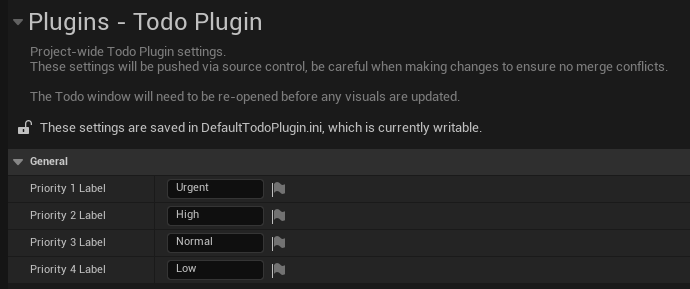
 UPROPERTY(EditAnywhere, Config, BlueprintReadOnly, Category="General", DisplayName="Priority 1 Label")
 FText Priority1Name = FText::FromString("Urgent");

 UPROPERTY(EditAnywhere, Config, BlueprintReadOnly, Category="General", DisplayName="Priority 2 Label")
 FText Priority2Name = FText::FromString("High");

 UPROPERTY(EditAnywhere, Config, BlueprintReadOnly, Category="General", DisplayName="Priority 3 Label")
 FText Priority3Name = FText::FromString("Normal");

 UPROPERTY(EditAnywhere, Config, BlueprintReadOnly, Category="General", DisplayName="Priority 4 Label")
 FText Priority4Name = FText::FromString("Low");
};

UCLASS(Config=TodoPluginUser, BlueprintType)
class TODOPLUGIN_API UTodoPluginSettingsLocal : public UObject
{
 GENERATED_BODY()

public:
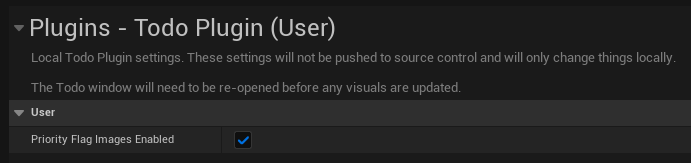
 UPROPERTY(EditAnywhere, Config, BlueprintReadOnly, Category="User", DisplayName="Priority Flag Images Enabled")
 bool ShowPropertyFlagIcon = true;
};
TIP Config properties
Note that all of the UPROPERTY use the Config specifier. This is necessary for the properties to be saved and loaded from the config files, which is done automatically by the engine when this specifier is used.
Registering the settings
The settings have to be registered with the Unreal Engine settings module to appear in the Project Settings.
This is done in the plugin's main .cpp file, and is done in the StartupModule function. I abstracted the registration code into a separate function for clarity, but placing it directly inside the StartupModule functions works as well.
While not shown below, you can assume I'm calling RegisterSettings() from within StartupModule(), and vice versa for unregistering the settings in ShutdownModule().
TIP Settings categories
The settings are registered under the Project > Plugins category in Project Settings. This is done by specifying "Project", "Plugins", and a unique name for the settings category - in my case, "TodoPluginUser" and "TodoPluginProject".
RegisterSettings takes in parmaters in the following order: container name, category name, section name, display name, description, and the settings object.
void FTodoPluginModule::RegisterSettings()
{
 ISettingsModule* settingsModule = FModuleManager::GetModulePtr<ISettingsModule>("Settings");
 if (!settingsModule) return;

 settingsModule->RegisterSettings(
  "Project",
  "Plugins",
  "TodoPluginUser",
  LOCTEXT("TodoPluginProjectName", "Todo Plugin (User)"),
  LOCTEXT("TodoPluginProjectDesc", "Local Todo Plugin settings. These settings will not be pushed to source control and will only change things locally.\n\nThe Todo window will need to be re-opened before any visuals are updated."),
  GetMutableDefault<UTodoPluginSettingsLocal>()
 );

 settingsModule->RegisterSettings(
  "Project",
  "Plugins",
  "TodoPluginProject",
  LOCTEXT("TodoPluginProjectName", "Todo Plugin"),
  LOCTEXT("TodoPluginProjectDesc", "Project-wide Todo Plugin settings.\nThese settings will be pushed via source control, be careful when making changes to ensure no merge conflicts.\n\nThe Todo window will need to be re-opened before any visuals are updated."),
  GetMutableDefault<UTodoPluginSettingsProject>()
 );
}
TIP Unregistering settings
It's important to note that the parameters used to unregister the settings must match those used during registration. They are in the same order of: container name, category name, and section name.
void FTodoPluginModule::UnregisterSettings()
{
 ISettingsModule* settingsModule = FModuleManager::GetModulePtr<ISettingsModule>("Settings");
 if (!settingsModule) return;

 settingsModule->UnregisterSettings("Project", "Plugins", "TodoPluginUser");
 settingsModule->UnregisterSettings("Project", "Plugins", "TodoPluginProject");
}
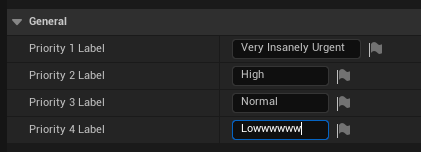
These settings are now visible in Project Settings > Plugins > Todo Plugin (User) and Project Settings > Plugins > Todo Plugin.
Accessing settings in Blueprints
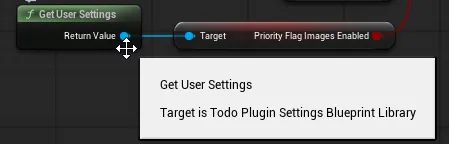
With the settings classes made, I need to make them accessible in Blueprints.
There are a few ways of doing this, but I chose to use a Blueprint Function Library to expose functions that return the settings objects.
INFO What other methods are there?
If you wanted your window to be dynamically updated, then you'd likely want to use a subsystem instead, which would allow the use of delegates to notify when settings have changed.
Another option is to get the class defaults directly, and while this works and has no C++ setup, it couples the Blueprint logic to the specific settings classes, and is less friendly as you may select the wrong class by mistake.
UCLASS()
class TODOPLUGIN_API UTodoPluginSettingsBlueprintLibrary : public UBlueprintFunctionLibrary
{
 GENERATED_BODY()

public:
 UFUNCTION(BlueprintPure, Category="Todo Plugin|Settings")
 static const UTodoPluginSettingsLocal* GetUserSettings();

 UFUNCTION(BlueprintPure, Category="Todo Plugin|Settings")
 static const UTodoPluginSettingsProject* GetProjectSettings();
};
const UTodoPluginSettingsLocal* UTodoPluginSettingsBlueprintLibrary::GetUserSettings()
{
 return GetDefault<UTodoPluginSettingsLocal>();
}

const UTodoPluginSettingsProject* UTodoPluginSettingsBlueprintLibrary::GetProjectSettings()
{
 return GetDefault<UTodoPluginSettingsProject>();
}
These functions can now be called in Blueprints to get the settings objects, where their properties can be accessed to change the behaviour of the plugin.
In my case, I exposed the priority level names to allow users to change the four priority level labels to their liking, as well as an option to toggle whether the priority flag images are shown next to tasks.