Loading an EUW into an Unreal Engine Plugin
A guide on how to load an Editor Utility Widget (EUW) into an Unreal Engine plugin using C++.
Loading an EUW into an Unreal Engine Plugin
Introduction
This blog post will detail how you can load an editor utility widget (EUW) into an Unreal Engine Plugin using C++.
This will allow the use of UMG widgets and Blueprint logic within your plugin.
TIP Why might you want to do this?
Using EUWs allows for quick iteration and rapid prototyping of UI using UMG and Blueprints. This can be useful when creating complex tools without needing to use Slate and C++ for the entire UI.
Creating a new Unreal Engine Plugin
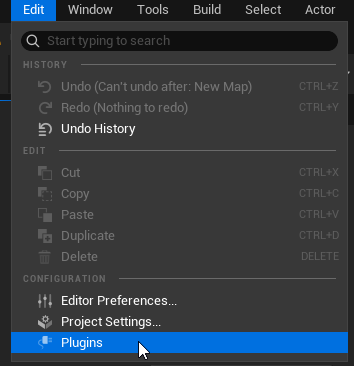
New plugins can be created in the Unreal Editor by navigating to Edit > Plugins.
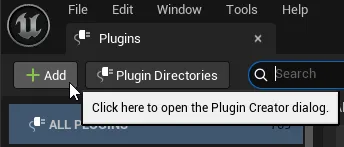
From here, the Add button can be used to create a new plugin.
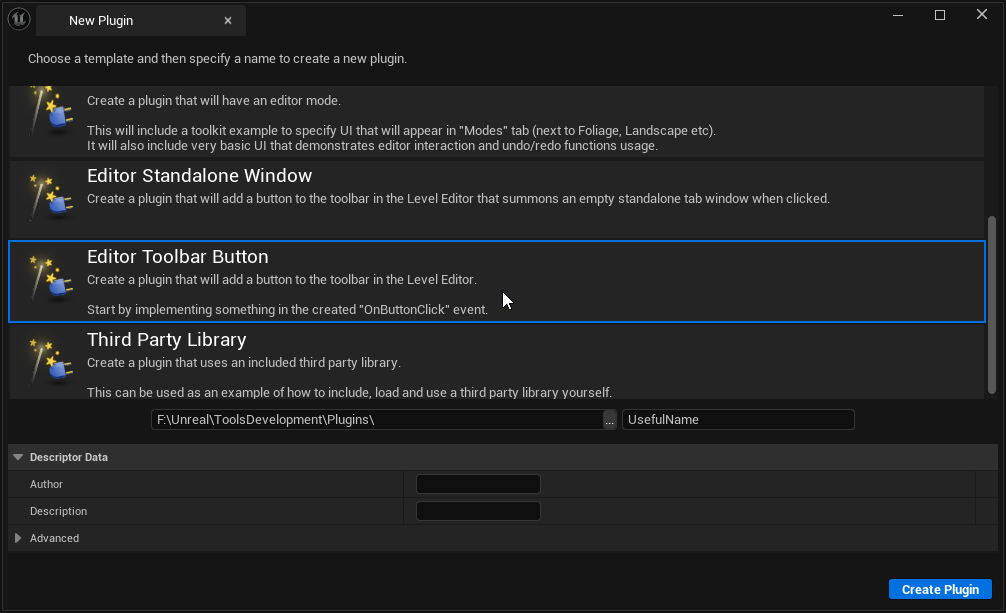
For this example, I will be creating a new plugin using the Editor Toolbar Button template.
TIP Editor Toolbar Button Template
This template adds a button to the editor toolbar and creates C++ boilerplate to handle logic when the button is clicked.
Allowing the plugin to have content
As I will be using an Editor Utility Widget in the plugin, I need to allow the plugin to have content. This can be done by navigating to the plugin's settings in Edit > Plugins, and enabling the Can Contain Content option.
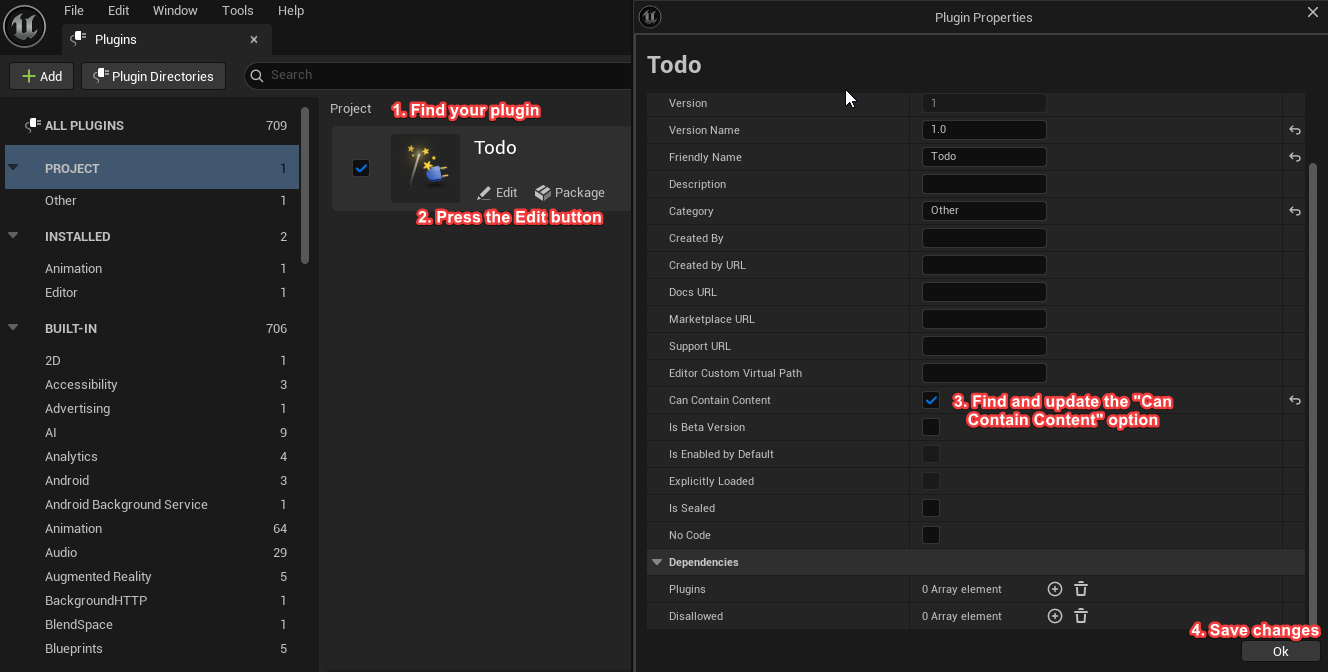
WARNING Restart required
After changing any plugin settings, the Unreal Editor must be restarted for the changes to take effect.
Showing the plugin content in the Content Browser
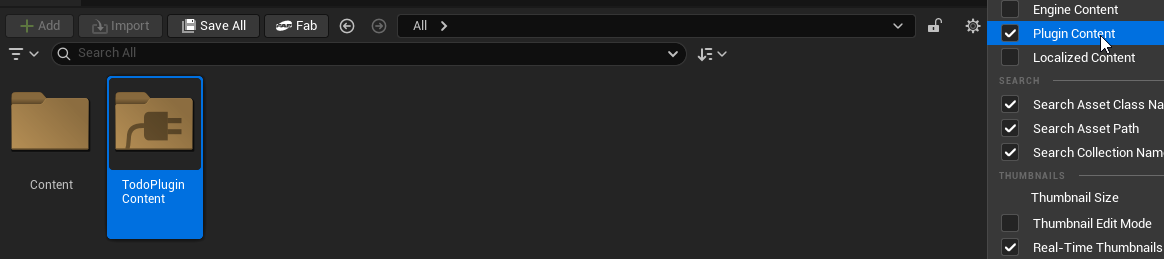
In the content browser, you must ensure that plugin content is visible.
This can be enabled by going to the content browser settings and enabling the Plugin Content checkbox. Once done, your plugin's content folder will be visible under the name of your plugin plus " Content". In this example, my plugin is called "TodoPlugin", and the plugin content folder is called "TodoPlugin Content".
TIP Why enable content for plugins?
By default, plugins are code-only to keep them lightweight.
Enabling content allows the plugin to store assets like UMG widgets, textures, and blueprints. This is necessary for this guide's plugin as Editor Utility Widgets are assets that need to be loaded by the plugin, so must be packaged with it and be part of the plugin's content.
Creating an Editor Utility Widget
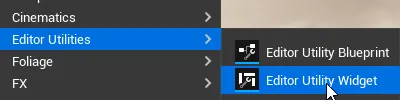
Navigating to the plugin content folder, I can make a new Editor Utility Widget by right-clicking in the content browser and selecting Editor Utilities > Editor Utility Widget. I'm going to give mine a root widget of Vertical Box, and name it EUW_TodoWindowWidget. Give it an appropriate root widget and name it something relevant to your plugin.
You can begin to build out your EUW using a familiar UMG workflow, for this example I will be adding a few buttons to print messages to the output log.
Loading the EUW into the plugin window with C++
In this guide I will be using JetBrains Rider as my IDE.
Before adding the code to load the EUW, I need to make sure that the plugin's .Build.cs file includes the Blutility, and UMGEditor modules as dependencies. These should be added to the private dependency module names array.
TIP Why add these modules?
Blutility and UMGEditor are required to work with Editor Utility Widgets in C++. The modules provide the necessary classes and functions to load and display EUWs within the Unreal Editor.
Navigate to the plugin's source folder, and open the main .cpp file of your plugin. In this example, my plugin is called TodoPlugin, so the main source file is TodoPlugin.cpp.
In this file, there is a function called FTodoPluginModule::PluginButtonClicked, which is called when the toolbar button is clicked. I will be replacing this code with code to load my EUW and set it as the content of the plugin window.
TIP Finding the correct asset path to the Editor Utility Widget
To easily get the correct asset path for loading the EUW, right click the EUW in the content browser and select Copy Object Path. Paste this path into the LoadObject function below. For me, this copies /TodoPlugin/EUW_TodoWindowWidget.EUW_TodoWindowWidget.
void FTodoPluginModule::PluginButtonClicked()
{
    // load the editor utility widget from the plugin content
    UEditorUtilityWidgetBlueprint* euw = LoadObject<UEditorUtilityWidgetBlueprint>(nullptr, TEXT("/TodoPlugin/EUW_TodoWindowWidget.EUW_TodoWindowWidget"));

    if (!euw) return;

    // get the editor utility widget subsystem
    UEditorUtilitySubsystem* editorUtilitySubsystem = GEditor->GetEditorSubsystem<UEditorUtilitySubsystem>();
    if (!editorUtilitySubsystem) return;

    // spawn and register a tab with the editor utility widget as content
    editorUtilitySubsystem->SpawnAndRegisterTab(euw);
}
TIP Why use LoadObject every time the button is clicked?
Instead of loading the EUW once and storing a reference to it, I am using LoadObject to load the EUW each time the button is clicked.
This ensures that any changes made to the EUW in the editor are reflected when it is opened again, and it also helps to keep the plugin lightweight as the EUW is only loaded when needed.
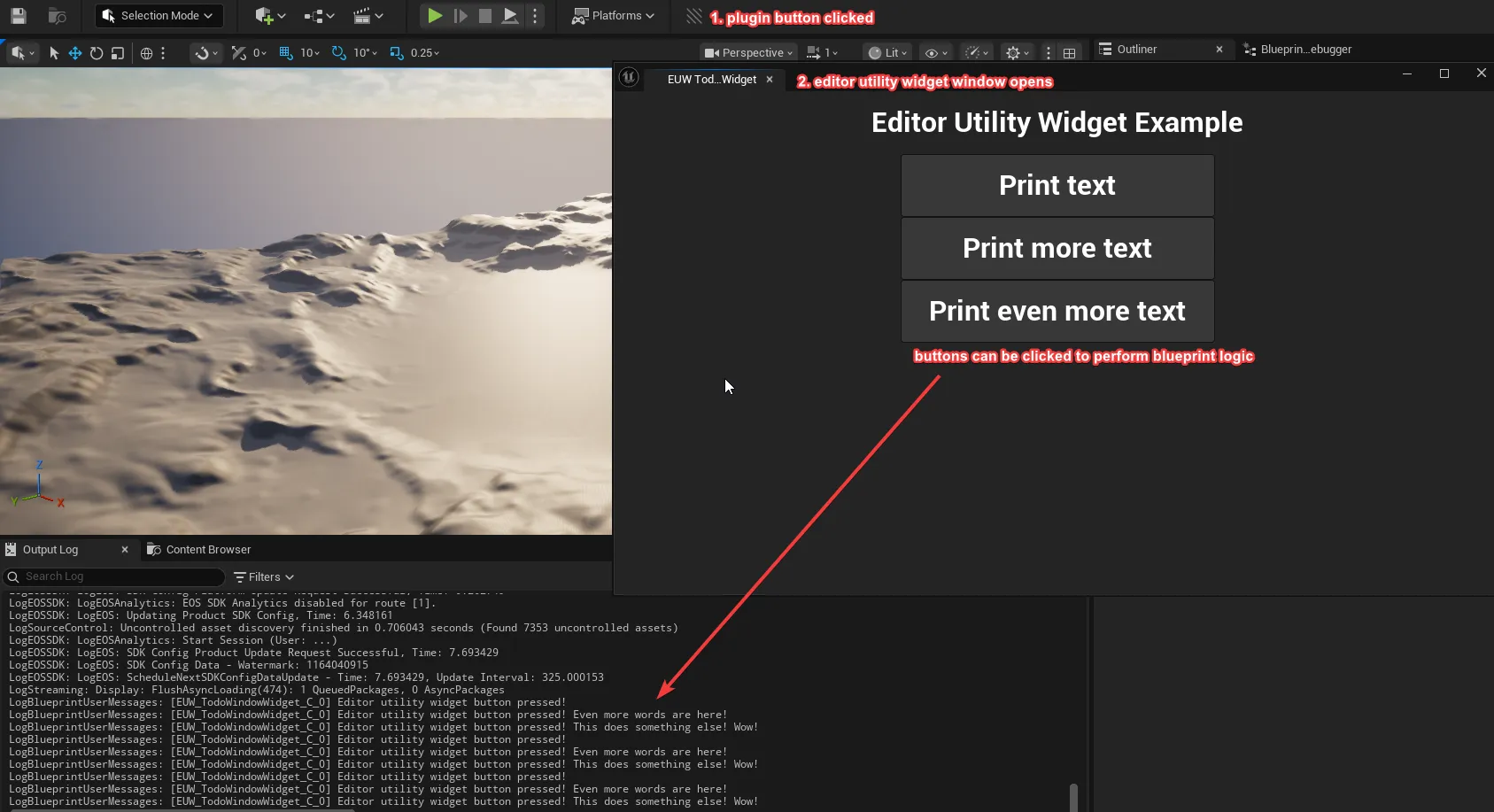
With this code in place, when the toolbar button is clicked, the EUW will be loaded and displayed in a new tab.
This can be seen working for me in the screenshot below: