Tower of Fools
A 24 person collaborative Unity uni project where players race up a procedurally generated tower while rising lava closes in. Personal contributions in UI implementation.
Introduction
Tower of Fools is a procedural competitive platformer developed in Unity by a team of 24 students for the Junior Collaborate Development at the University of Staffordshire.
Players must ascend an endlessly rising tower while avoiding encroaching lava, using pickups to gain an advantage or hinder their opponent. The game supports two players simultaneously.
My contribution focused on in-engine UI implementation using the Unity UI Toolkit and C#, building out all interfaces from the main menu to the in-game HUD.
Overview
Tasked with the UI, my role was to build out and code the UI in engine. I used this module as a learning experience to become familiar with Unity's UI Toolkit system, which I hadn't used prior to this module.
Key areas that I was responsible for included:
- UI setup using UI Toolkit and USS (Unity style sheets)
- C# menu manager controllers for all menus and the in-game HUD
- Scene management and a loading screen system
- Controller and keyboard/mouse input support for menu navigation, with focus support for controller
- Collaboration with UI artists to integrate art assets and iterate on layouts
This module was also a good introduction to project management software. I was assigned tasks by my tech lead through Microsoft Planner, which gave me a clear breakdown of what I needed to deliver.
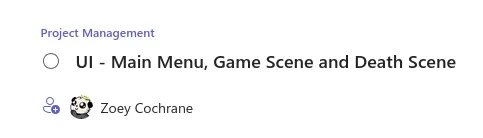
Throughout the project I learned the value of consistent communication, not just within the tech team, but across disciplines. I worked closely with the UI artist throughout, discussing what assets would be needed, was what possible in engine, and iterate on layouts based on feedback from others in the team.
TIP UI Toolkit Text Gradient Blog Post
Check out the blog post I wrote on adding gradients to text in UI Toolkit. Read it here: https://www.zoeycochrane.com/blog/gradient-text-unity-ui-toolkit
Development
Menu Manager
Early in the project I built a main menu as my first experience with the UI Toolkit, learning how to create elements, lay them out, animate them with USS transitions, and connect interactions by querying elements from a UI document in C#.
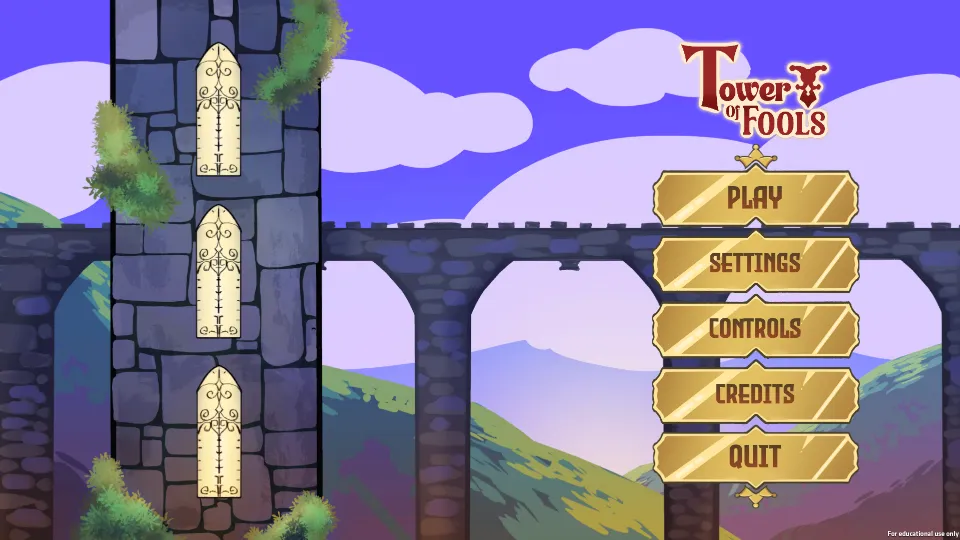
As the number of menus grew - main menu, game over, pause, settings, controls, credits, loading screen, etc - I needed a more maintainable approach. I refactored all of the menu scripts to inherit from an abstract base class, BaseMenuManager, which centralised the logic to bind buttons and handled unbinding them automatically on destruction. Child classes override an InitialiseMenuManager function to declare their bindings.
protected override void InitialiseMenuManager()
{
    BindButton("play-btn", HandleButtonClicked_Play);
    BindButton("scoreboard-btn", HandleButtonClicked_Scoreboard);
    BindButton("quit-btn", HandleButtonClicked_Quit);
}
The functionality of the base manager, notably the button binding clean-up on destruction, was informed by research into Unity memory leaks, which revealed that unreleased event bindings are a common source of issues. The clean-up was made a lot easier due to the refactor, as the base manager holds references to button and action callbacks, they can be iterated through to remove all bindings in one go.
The base menu manager featured ShowMenu and HideMenu functions, which toggled the visibility and allowed menu managers to show and hide each other by holding references to other managers, which drove the flow between menus like the pause menu and settings submenu.
I ensured that my logic was robust by adding button-spamming protections via debounce to all of the crucial buttons that handle scene loading.
private void HandleButtonClicked_ReturnToMainMenu()
{
    if (m_hasSceneLoadStarted) return;
    m_hasSceneLoadStarted = true;

    HideMenu();
    sc_SceneManager.LoadScene(m_mainMenuSceneName);
}
I made sure to expose as many parameters as possible, including using tooltips, so that designers could adjust scene routing, default visibility, and other behaviour, without needing to touch any code.
Scene Manager and Loading Screen
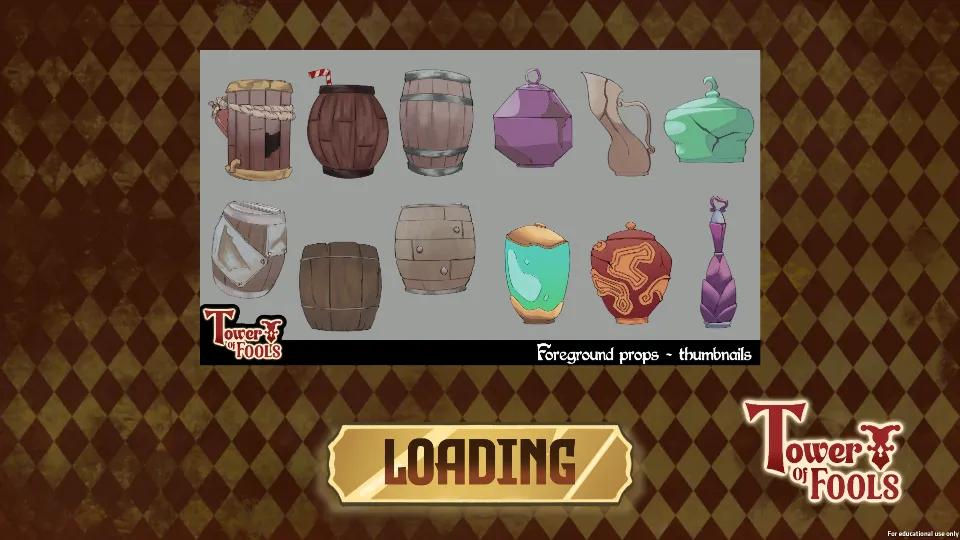
To improve the transition between scenes I implemented a loading screen system by reworking a previous iteration of the scene manager. I converted it to a singleton while keeping existing logic static to ensure that no calls to the system needed to change.
A coroutine handles the scene transition, additively loading the loading screen, target scene, and unloading the old scene and loading screen once complete.
This loading screen was later improved by adding concept art from the art team. I added a designer-friendly exposed array of Texture2D assets, which the script randomly picks from to display a piece of concept art each time the loading screen appears.
In-Game HUD
The in-game HUD sits at the top of the screen to avoid conflict with the rising lava. It displays player health as lives and a card showing any active powerup, including information about the powerup and how to use it.
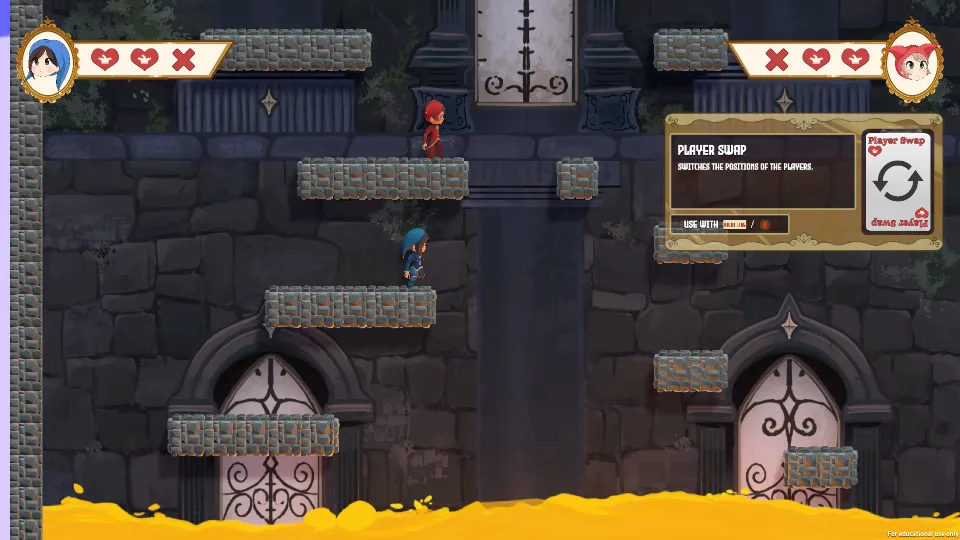
For the health display I created two dictionaries mapping the lives remaining values to correspond VisualElement widgets in the UI document, allowing the lives icons to tick down in the right order, which I hooked into the event system created by others on my tech team. I learned the importance of communication as I had to discuss the event system with people from my tech team to collaborate on the systems so that I would be able to hook the UI up to events in the event manager, and I'm really glad to have gained that experience.
The powerup card display was built in collaboration with tech, using scriptable objects to hold and pass powerup data around through the event system that I could use in the HUD.
Pause Menu and Settings
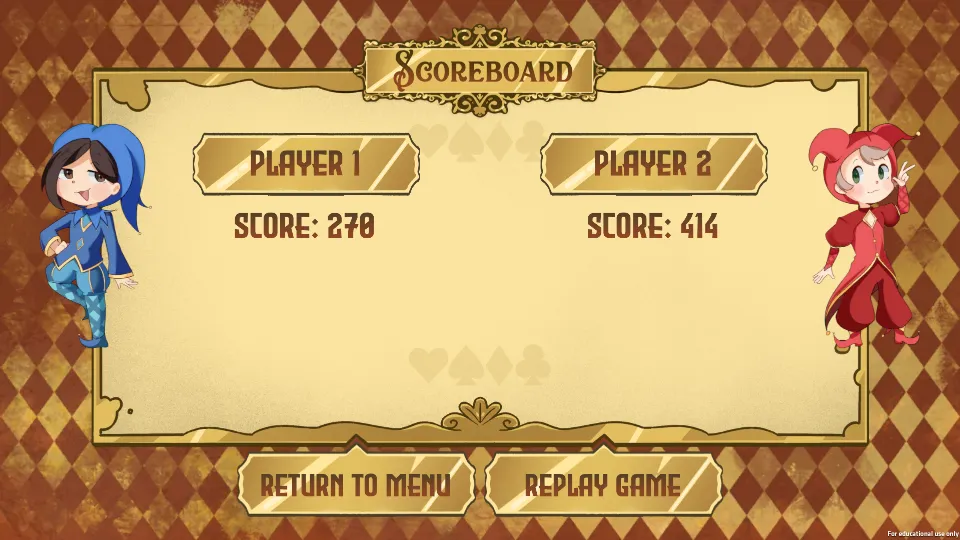
The pause menu hooks into an event from the event system that fires whenever each user toggles pause, showing or hiding itself based on the new paused state. When unpausing, it also checks whether the settings submenu is visible, and hides it if so, preventing it from persisting into gameplay.
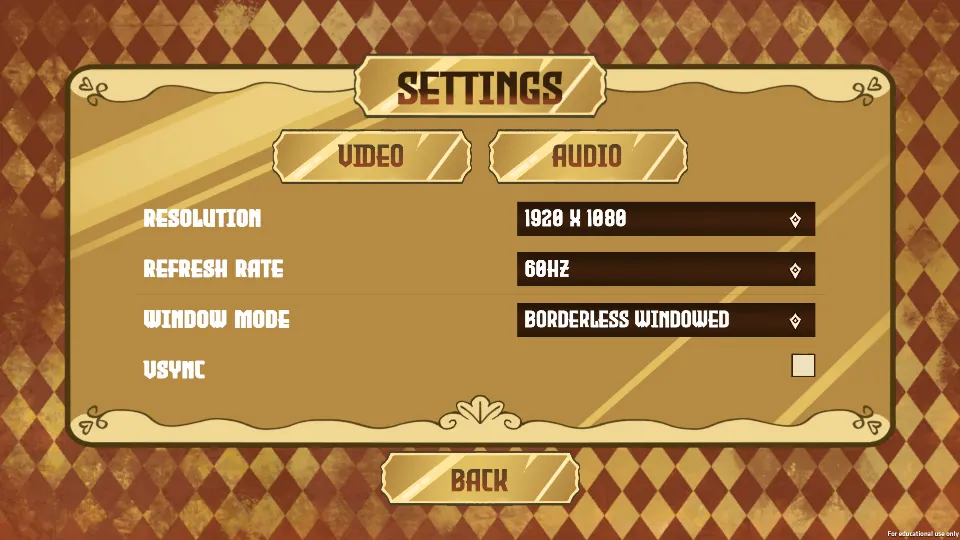
The settings menu uses a tab switching system, which queries the tabs using a shared USS class. The tab buttons are bound using the same BindButton function from the base menu manager, binding into lambdas that pass the target tab name to a SwitchTab function.
BindButton("btn-video", () => SwitchTab("panel-video"));
BindButton("btn-audio", () => SwitchTab("panel-audio"));
Controller Support
To better support gamepad navigation in menus I implemented auto-focus logic in the base menu manager. Each menu manager child class overrides a GetDefaultFocusButtonName function to return and declare which button should be automatically focused when that menu is shown. This is gated behind a check for gamepad connection, so that mouse and keyboard players don't see unexpected button focus.
Bug Fixes
A notable chunk of the work I performed in later weeks of the project included bug fixes, including systems that were outside my area. Some of these fixes include:
- Duplicate game over scene loads - where two instances of a player data manager existed, one on each player, were both listening for the game ending event and each triggering a scene load. I introduced a flag in the global data singleton to ensure the load could only be triggered once.
- Splash screen logo bug - The game logo wouldn't appear in the main menu in a build when the same asset was using as a splash screen image. Tracked this down with someone on my tech team, fixed by importing a separate copy of the image solely for UI use. This bug was unusual enough that I wrote it up as a blog post to help anyone else that might encounter it.
- Proc-gen transition trigger - If a player respawned above the collider that triggered the next room to generate, then it wouldn't. I added a check in the respawn logic that compares the player's Y position against the colliders following a respawn, and calls the generation function if needed.
INFO Other Contributions
Contributing to other areas outside of the UI was really beneficial; it allowed me to keep up with the other technical areas of the project, and how the game systems work and were constructed. This kept me informed about the project's technical state, meaning I could clearly communicate with other members of tech about what I would need for the event driven UI updates.
Conclusion
Working on Tower of Fools was a really rewarding experience that challenged me technically and collaboratively. Working with so many people across many disciplines gave me an appreciation for cross discipline communication, and the constant back and forth with the art team regarding UI assets and layouts all contributed to a final product that involved team effort. I came away with a stronger understanding of how to work with people across disciplines, and how important it is to keep communication going.
From a technical perspective, I was able to learn a lot about the Unity UI Toolkit, which is a system that I hadn't used before. I gained valuable experience and knowledge with the UI toolkit system and the UI Toolkit Debugger in particular.
The architectural decisions, particularly the base menu manager, event driven UI, and frequently exposed options for designers, taught me the value of keeping the whole team in mind when writing code. Keeping systems designer friendly, reducing duplicate code, and making things easy to understand and expand upon meant that collaboration was smoother and the UI codebase remained manageable.
I hope to continue writing up interesting bugs and technical learnings as blog posts to reflect and share what I learn.