TodoRevamped
A prototype to-do list plugin for Unreal Engine developed in Slate and C++ for a University module on engine tools development.
Introduction
TodoRevamped is an Unreal Engine 5 plugin that provides a collaborative to-do list in-engine, built as part of an engine tools development module at the University of Staffordshire.
There were three iterations of development done for this plugin, starting with an Editor Utility Widget Blueprint and UMG prototype. An initial Slate iteration where I learned about Slate, and a final more polished and well-structured Slate prototype. This development log will discuss the final iteration.
INFO Importance of iteration
Creating multiple iterations of this project was invaluable; it allowed me to experiment and become comfortable with Slate before starting the third final iteration, where I could focus on structuring my systems well and creating a well-rounded plugin.
Showcase & Development
The development details of the project will be shown below alongside a demonstration of how the relevant area was implemented.
Opening the plugin
The plugin can be opened using a button added to the Unreal toolbar. 
Setup wizard
If this is the first time opening the plugin, or if there are no users configured, it opens the user into the setup wizard.
Before showing the setup wizard, I want to show how the users are defined. The plugin's state is split between two configs, the project settings (which is checked into source control), and the local settings (which exists only on each user's machine, and holds what user they are).
UCLASS(Config=TodoRevampedPlugin, DefaultConfig, BlueprintType)
class TODOREVAMPED_API UTodoRevampedSettingsProject : public UObject
{
	GENERATED_BODY()

public:
	UPROPERTY(EditAnywhere, Config, BlueprintReadOnly, Category="Users")
	TArray<FTodoRevampedUser> Users;
};

UCLASS(Config=TodoRevampedPluginUser, BlueprintType)
class TODOREVAMPED_API UTodoRevampedSettingsLocal : public UObject
{
	GENERATED_BODY()

public:
	// hide this property in the detail panel so that users cannot edit it, but it can be edited with code
	UPROPERTY(VisibleAnywhere, Config, BlueprintReadOnly, Category="User", meta = (HideInDetailPanel))
	FGuid CurrentUser;
};
The function GetCurrentUser() gets the GUID of the local user and returns an invalid placeholder rather than null when it can't load the local user. If no users have loaded, no GUID is saved or if a GUID that no longer matches any users exists, there's still something to read, but an invalid UserId field is used to determine that setup hasn't happened when the plugin opens.
An example I think will highlight why returning an invalid placeholder is what I chose to do. Say a user is assigned to a task, then that user is removed, rather than checking everywhere if that user is valid, the task will display that it was assigned to an "N/A" user.
TSharedPtr<FTodoRevampedUser> FTodoDataManager::GetCurrentUser()
{
	TSharedPtr<FTodoRevampedUser> InvalidUser = MakeShared<FTodoRevampedUser>();
	InvalidUser->Username = FString("N/A");
	InvalidUser->UserId = FGuid();

	if (!LocalSettings) return InvalidUser;
	if (Users.Num() == 0) return InvalidUser;
	if (!LocalSettings->CurrentUser.IsValid()) return InvalidUser;

	for (const TSharedPtr<FTodoRevampedUser>& User : Users)
	{
		if (!User.IsValid()) continue;

		// if the local current user matches this user id, set the current user
		if (LocalSettings->CurrentUser == User->UserId)
		{
			return User;
		}
	}

	return InvalidUser;
}
The setup wizard was designed so that users can set the plugin up directly in the window, without needing to search for plugin project settings.
The setup wizard starts by prompting for inputs of team members. 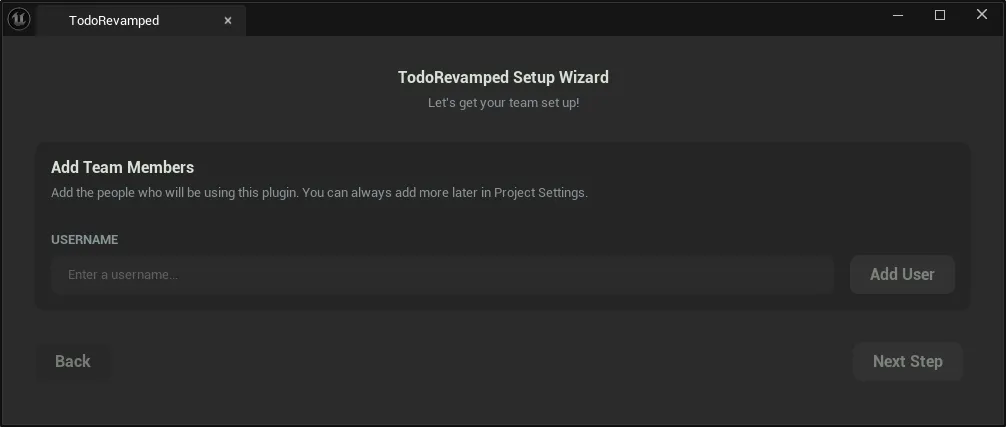
The setup wizard is chosen over the main window when the main todo window is constructed, so that reloading the plugin window refreshes state appropriately. If the setup is needed then the widget is populated with the setup wizard, ensuring that a delegate for OnSetupComplete is bound to build out the main content, so finishing the setup wizard swaps out the UI in real time with no need to re-open the plugin window.
void STodoMainWindow::Construct(const FArguments& InArgs)
{
	// refresh the data when the window is loaded
	FTodoDataManager::Get().RefreshInformation();

	// if there are no users or the current user is invalid, show the setup window
	if (!FTodoDataManager::Get().GetCurrentUser()->UserId.IsValid() || FTodoDataManager::Get().GetUsers().Num() == 0)
	{
		ChildSlot [
			SNew(STodoSetupWindow)
			.OnSetupComplete(this, &STodoMainWindow::BuildMainContent)
		];
		return;
	}

	BuildMainContent();
}
Once team members are added, the user can progress to the next step - choosing who they are. 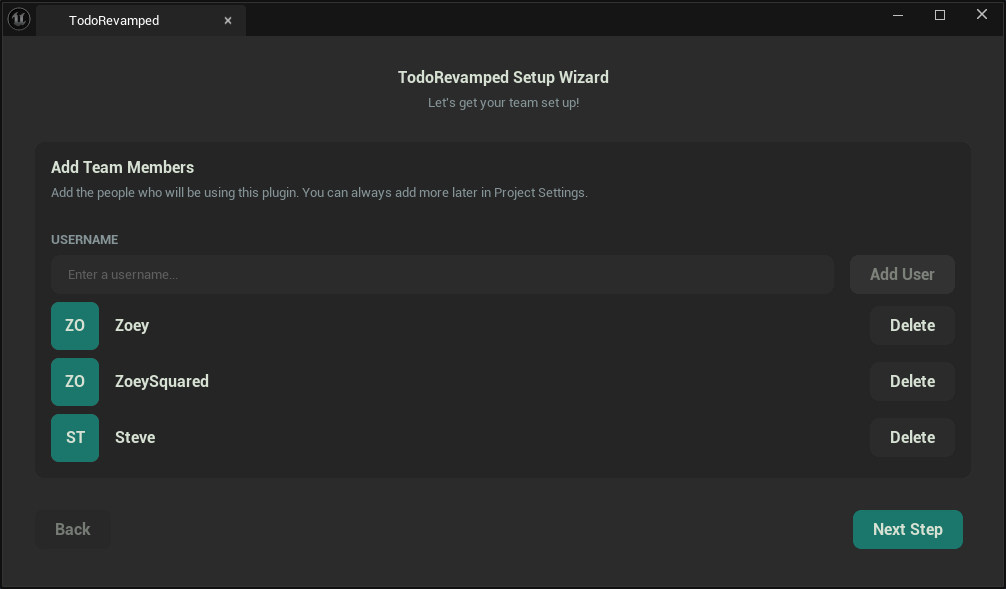
The second page of the setup wizard allows the user to select who they are from a dropdown of all available team members - this users dropdown is a reusable Slate widget that's used in multiple places, which will be shown later. 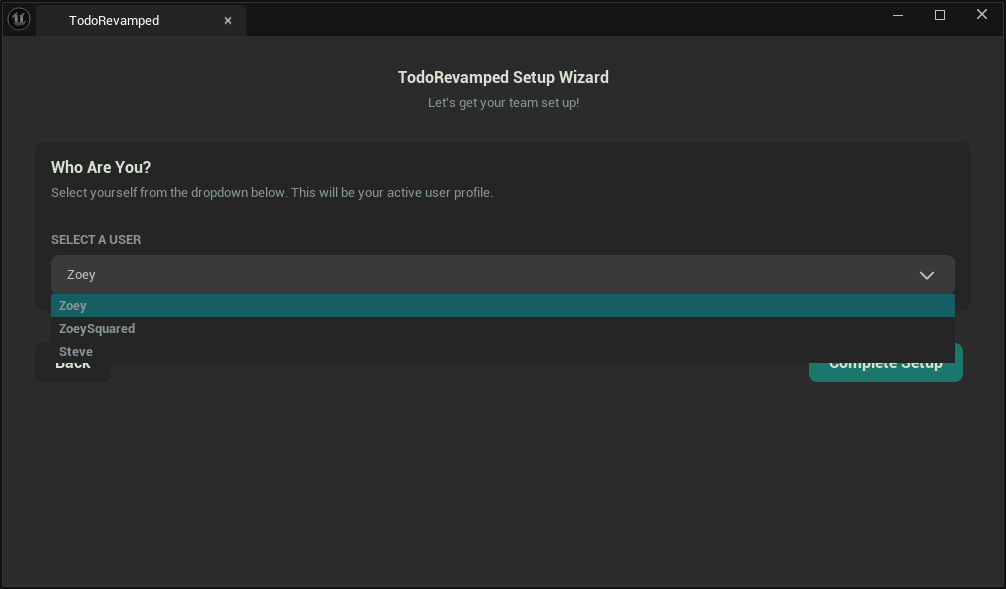
The setup wizard reads the two conditions - whether any users exist, or whether the local user is invalid, to distinguish between a fresh plugin install from one that's already been configured with a user opening it for the first time. An empty set of users starts at the first step of the wizard - allowing entry of team members. A populated set of users skips straight to the second page, in which the user selects who they are, while disabling the back button so that they can't edit the roster of users while choosing who they are.
bool DoUsersExist = false;

// set the active initial index
if (FTodoDataManager::Get().GetUsers().Num() == 0)
{
	// no team member exist, index 0
	ActivePageIndex = 0;
} else if (!FTodoDataManager::Get().GetCurrentUser()->UserId.IsValid())
{
	// team members exist, but no local user is set - index 1
	ActivePageIndex = 1;
	DoUsersExist = true;
}
Both of these pages (the setup wizard and the main todo plugin window) live in an SWidgetSwitcher which is driven by the index in the code snippet above (page 0 = setup wizard, page 1 = main plugin content). Each step of the setup wizard writes any changes to the config (like the team members to the project settings, and the local user identity to the local settings), before firing OnSetupComplete to send the user to the main plugin window.
.OnNextButtonClicked_Lambda([this]()
{
	FTodoDataManager::Get().SetCurrentUser(SelectedUserUsername);
	OnSetupComplete.ExecuteIfBound();
	return FReply::Handled();
})
To-do list window
Once the setup has been completed, the user is opened into the tasks window. This shows them the available tasks, and allows them to switch between three tabs - Tasks, Notifications, and User. 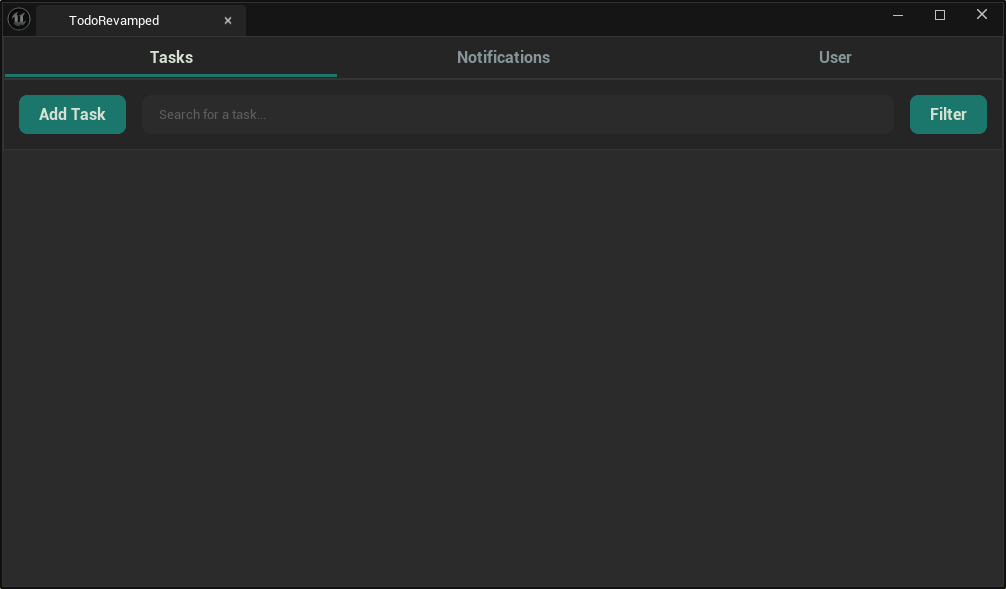
The main window is a tab bar that's stacked on top over another SWidgetSwitcher. All of the three pages are constructed once and kept around, so that switching tabs only changes the current visible widget index, meaning that information like active filters survives cross-page navigation. The structure of the main todo window can be seen below.
SNew(SVerticalBox)

+ SVerticalBox::Slot().AutoHeight()
[
	SNew(STodoTabBar)
	.OnTabSelected(this, &STodoMainWindow::OnTabSelected)
]

+ SVerticalBox::Slot().FillHeight(1.0f)
[
	SAssignNew(PageSwitcherWidget, SWidgetSwitcher)
	.WidgetIndex_Lambda([this]() { return ActivePageIndex; })

	// index 0 - tasks page
	+ SWidgetSwitcher::Slot()
	[
		SNew(STodoTaskPage)
	]

	// index 1 - notifications page
	+ SWidgetSwitcher::Slot()
	[
		SNew(STextBlock).Text(FText::FromString("Notifs page"))
	]

	// index 2 - user page
	+ SWidgetSwitcher::Slot()
	[
		SNew(STodoUserPage)
	]
]
The tab bar is built from a small array rather than through manually written slots - making it an easy one line change to add a new page. Each tab is an SOverlay of a button, with a small indicator bar at the bottom to show the currently selected tab. Both the text colour and the indicator bar are bound with _Lambda attributes that compare against the ActiveTabIndex, so highlighting is driven automatically by state rather than being toggled manually.
TArray<FTab> Tabs;
Tabs.Add({ LOCTEXT("TasksTabTasks", "Tasks"), 0 });
Tabs.Add({ LOCTEXT("TasksTabNotifications", "Notifications"), 1 });
Tabs.Add({ LOCTEXT("TasksTabUser", "User"), 2 });

// bottom 3px selected indicator
+ SOverlay::Slot().VAlign(VAlign_Bottom).HAlign(HAlign_Fill).Padding(0.0f)
[
	SNew(SBox).HeightOverride(3.0f)
	[
		SNew(SBorder)
		.BorderImage(TabSelectedIndicator.Get())
		.BorderBackgroundColor_Lambda([this, index = Tab.TabIndex]()
		{
			return index == ActiveTabIndex
				? FTodoRevampedStyle::Get().GetColor("TodoRevamped.Colour.Accent")
				: FLinearColor::Transparent;
		})
	]
]
Tasks page
A task can be added using the Add Task button. This opens a new window that allows the user to input information about a task, like the name, description, priority, and more. 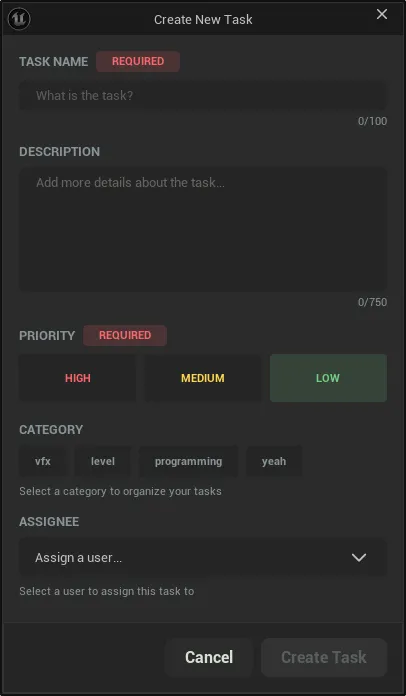
Adding multiple tasks sorts them by their category in the tasks page, showing the priority, optional description and assignee, and provides a checkbox to mark the task as completed. 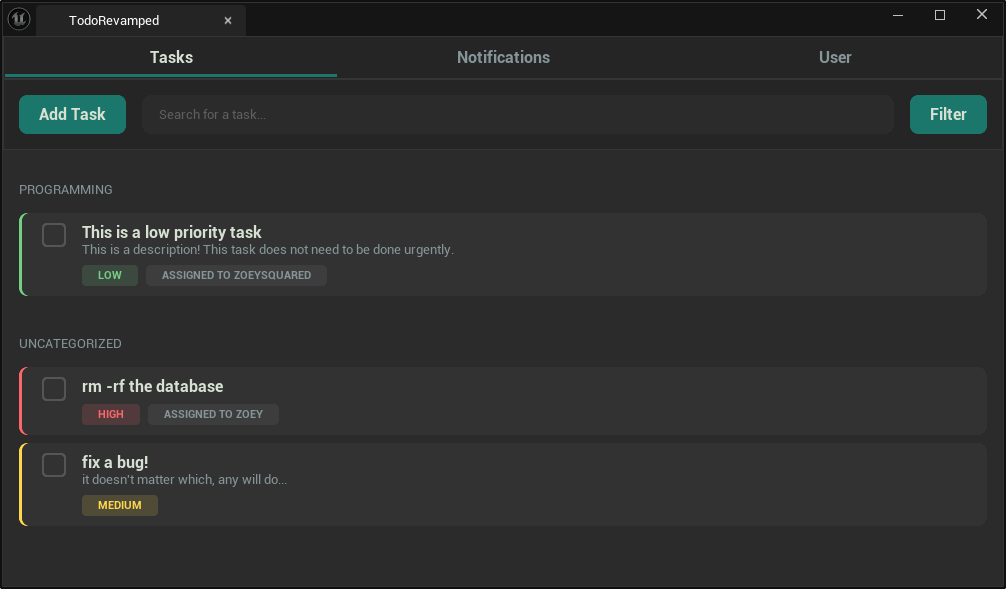
To create the tasks page list, rather than nesting a vertical box inside of per-category containers, the entire page is constructed into a single row array containing all kinds of information. One SListView renders the entire list and OnGenerateRow branches based on the row type, which keeps the entire page virtualised, even across category sections.
enum class ETaskListRowType
{
	Header,
	Task,
	Footer
};

struct FTaskListRow
{
	ETaskListRowType RowType;
	FString Category;
	UTaskData* TaskData = nullptr;
};
There's a single rebuild function for this list. It applies the search string and filters first, then groups what survives the filtering by category, creates a header row for each non-empty category followed by the tasks within that category. Every interaction that changes the result of the filters (searching, toggling a filter, completing a task, creating a task), all call back to this one rebuild function.
void STodoTaskPage::GenerateTaskItems()
{
	// data setup
	TMap<FName, TArray<UTaskData*>> TaskCategoriesMap;

	bool IsSearchFilterActive = !CurrentSearchFilter.IsEmpty();
	bool isTaskFilterActive = CurrentlySelectedFilter != EFilterOption::AllTasks;
	bool isAssignmentFilterActive = CurrentlySelectedAssignmentFilter != EAssignmentFilterOption::All;
	const FString FilterLowercase = CurrentSearchFilter.ToLower();

	for (UTaskData* Task : FTodoDataManager::Get().GetTasks())
	{
		if (IsSearchFilterActive)
		{
			const FString TaskTitle = Task->TaskName.ToString().ToLower();
			if (!TaskTitle.Contains(FilterLowercase)) continue;
		}

		if (isTaskFilterActive)
		{
			if (CurrentlySelectedFilter == EFilterOption::CompletedTasks && !Task->TaskCompleted) continue;
			if (CurrentlySelectedFilter == EFilterOption::ActiveTasks && Task->TaskCompleted) continue;
		}

		if (isAssignmentFilterActive)
		{
			// if there is no assigned user and the filter is on tasks only for the current user, skip it
			if (!Task->AssignedUser.IsValid() && CurrentlySelectedAssignmentFilter == EAssignmentFilterOption::AssignedToMe) continue;
			// if the assigned user is valid but does not match the current user, skip it
			if (CurrentlySelectedAssignmentFilter == EAssignmentFilterOption::AssignedToMe &&
				Task->AssignedUser != FTodoDataManager::Get().GetCurrentUser().Get()->UserId) continue;
		}

		TaskCategoriesMap.FindOrAdd(Task->Category).Add(Task);
	}

	// run through the grouped task categories and set up data
	TaskItems.Reset();
	for (auto& Category : TaskCategoriesMap)
	{
		// if there are no tasks under this header, don't make it
		if (Category.Value.Num() == 0) continue;

		// add the category header
		TSharedPtr<FTaskListRow> HeaderRow = MakeShared<FTaskListRow>();
		HeaderRow->RowType = ETaskListRowType::Header;
		HeaderRow->Category = Category.Key.ToString();
		TaskItems.Add(HeaderRow);

		// add the tasks in this category
		for (UTaskData* Task : Category.Value)
		{
			TSharedPtr<FTaskListRow> TaskRow = MakeShared<FTaskListRow>();
			TaskRow->RowType = ETaskListRowType::Task;
			TaskRow->Category = Category.Key.ToString();
			TaskRow->TaskData = Task;
			TaskItems.Add(TaskRow);
		}
	}

	if (TaskListView.IsValid())
		TaskListView->RequestListRefresh();
}
Row generation branches based on the type of row that is being created, all of which use a transparent table row style so that my styling is absolute.
TSharedRef<ITableRow> STodoTaskPage::OnGenerateRow(TSharedPtr<FTaskListRow> InTaskRow,
	const TSharedRef<STableViewBase>& TableViewBase)
{
	// if it is a header
	if (InTaskRow->RowType == ETaskListRowType::Header)
	{
		return SNew(STableRow<TSharedPtr<FTaskListRow>>, TableViewBase)
			.Style(FTodoRevampedStyle::Get(), "TodoRevamped.TableRow.Transparent")
			.Padding(FMargin(16.0f, 32.0f, 16.0f, 16.0f))
		[
			SNew(STextBlock)
			.Text(FText::FromString(InTaskRow->Category).ToUpper())
			.TextStyle(FTodoRevampedStyle::Get(), "TodoRevamped.Text.Description")
		];
	}

	// it is a task row
	return SNew(STableRow<TSharedPtr<FTaskListRow>>, TableViewBase)
		.Style(FTodoRevampedStyle::Get(), "TodoRevamped.TableRow.Transparent")
		.Padding(FMargin(16.0f, 0.0f, 16.0f, 8.0f))
	[
		SNew(STodoTaskItem)
		.Task(InTaskRow->TaskData)
		.OnTaskCompletionChanged(this, &STodoTaskPage::GenerateTaskItems) // regenerate task items when a task item is marked as complete
	];
}
When a new task is created from the new task modal, the page doesn't need to poll anything as it subscribes to the data manager's delegate on construction and rebuilds the rows when it fires.
FTodoDataManager::Get().OnTaskAddedNoPayload.AddSP(this, &STodoTaskPage::GenerateTaskItems);
GenerateTaskItems();
Clicking the filters button opens a filtering menu at the top of the page, allowing the user to filter between all/active/completed tasks, and ones assigned to themselves. 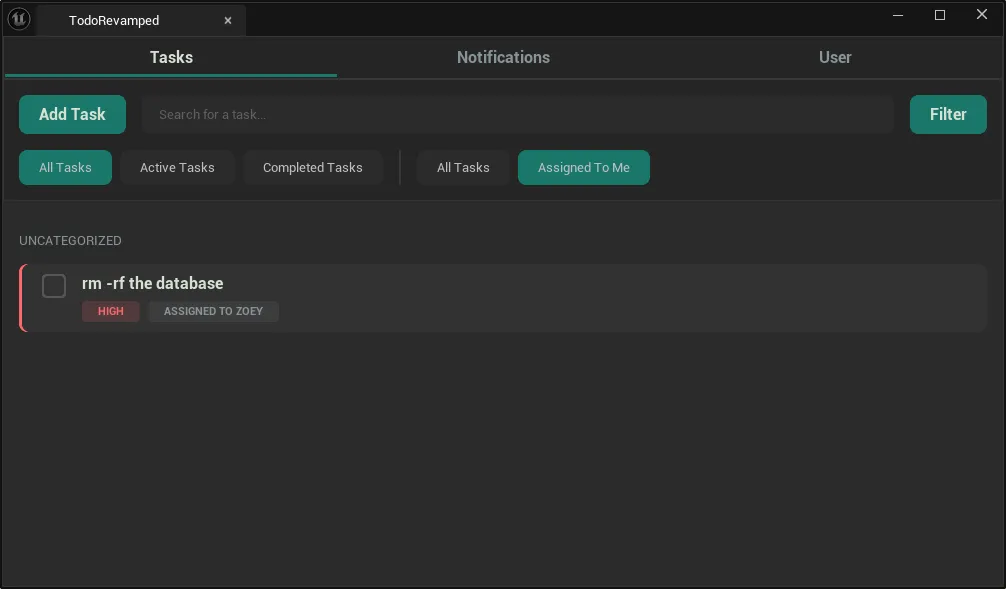
The filter row is a collapsed SWrapBox (to allow elements to wrap over to the next line should the window shrink too much). The buttons are generated by a helper function that registers each one in a map, so that the UpdateFilterButtonStyles() function can restyle the whole set after any filter selection changes.
TSharedRef<SWidget> STodoTaskPage::BuildFilterButton(EFilterOption FilterOption)
{
	TSharedPtr<SButton> Button = SNew(SButton)
		.ButtonStyle(FTodoRevampedStyle::Get(), FilterOption == CurrentlySelectedFilter ? "TodoRevamped.Button.Accent" : "TodoRevamped.Button.BodyBg")
		.Text(GetFilterButtonText(FilterOption))
		.Cursor(EMouseCursor::Hand)
		.OnClicked_Lambda([this, FilterOption]()
		{
			CurrentlySelectedFilter = FilterOption;
			UpdateFilterButtonStyles();
			GenerateTaskItems();
			return FReply::Handled();
		});

	FilterButtons.Add(FilterOption, Button);
	return Button.ToSharedRef();
}
Marking a task as completed fills the checkbox, and greys out the entire widget. It can still be unchecked and re-opened should it need to be. 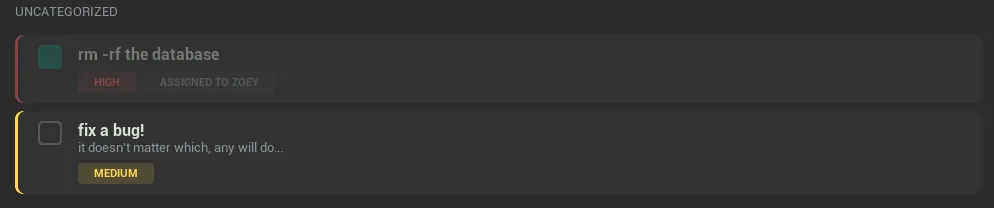
Notifications page
The notifications page was left out due to scope - but I had plans to include notifications when the user was assigned a new task. I'd like to at some point revisit this plugin and get it finished up to further my knowledge on Slate, and it'd be a real accomplishment to get something on the Fab store.
User page
The User page shows information about which user is currently selected, and allows the user to switch who they are from within the plugin window, rather than needing to navigate to the project settings. As the users are represented internally by a FGuid, it would be a pain to switch user easily, this mitigates it by re-using the user dropdown and improves user experience.
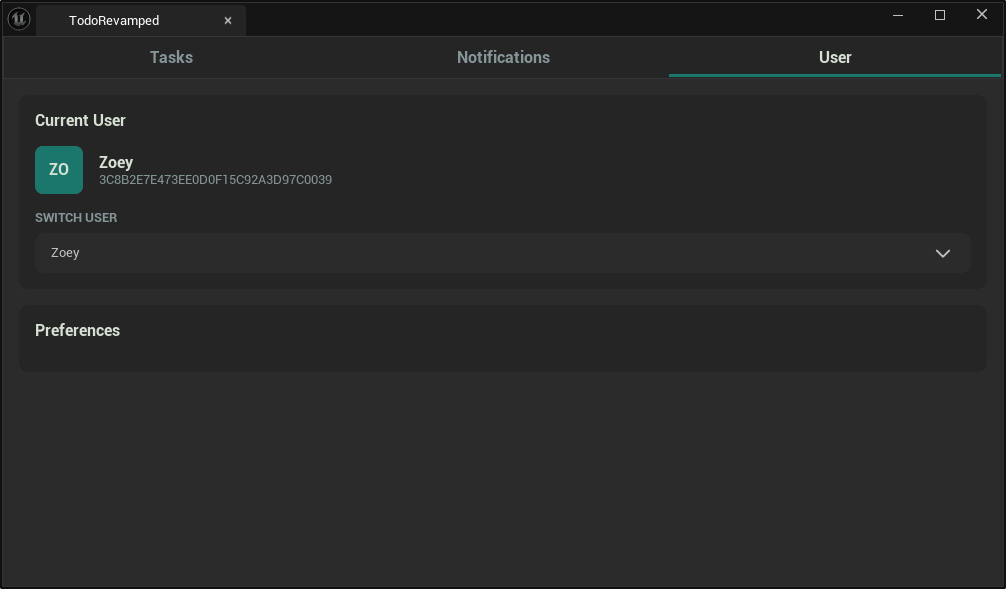
The current user section of the users page is automatically updated through the use of _Lambda attributes rather than cached strings, this means that switching a user will immediately update the avatar, name, and GUID without rebuilding the menu.
// user avatar
+ SHorizontalBox::Slot().AutoWidth().Padding(0.0).VAlign(VAlign_Center)
[
	SNew(STodoUserAvatar)
	.Username_Lambda([this]()
	{
		return FTodoDataManager::Get().GetCurrentUser()->Username;
	})
]

// name
+ SVerticalBox::Slot().AutoHeight().Padding(0.0f)
[
	SAssignNew(CurrentUserNameText, STextBlock)
		.Text_Lambda([this]()
		{
			return FText::FromString(FTodoDataManager::Get().GetCurrentUser()->Username);
		})
		.TextStyle(FTodoRevampedStyle::Get(), "TodoRevamped.Text.Title")
]
The user switching dropdown uses the same SComboBoxUser widget that I previously mentioned is used in the setup wizard, it's also used in the assignee field of the create new task modal.
void STodoUserPage::OnUserChanged(TSharedPtr<FString> InUsername, ESelectInfo::Type SelectInfo)
{
	if (!InUsername.IsValid()) return;

	// update the local settings to have this user as the current
	FTodoDataManager::Get().SetCurrentUser(*InUsername.Get());
}
I had planned to extend the local preferences that exist in the local settings to the menu, but had to cut back on scope.
Slate styling
Rather than hard-coding colours and sizes, the plugin resgisters a single FSlateStyleSet of named tokens that every widget's style is composed from. Colours are created as RGB values through a small helper and are converted to linear colour once.
FLinearColor rgb(uint8 r, uint8 g, uint8 b, float a = 1.0f)
{
	return FLinearColor::FromSRGBColor(FColor(r, g, b, static_cast<uint8>(a * 255.0f)));
}
Layout constraints are also registered alongside the colours so that spacing and radius are values in the system rather than magic numbers scattered throughout the codebase that could become desynced as development went on.
// constants
Style->Set("TodoRevamped.Constants.CornerRadius", 8.0f);
Style->Set("TodoRevamped.Constants.ButtonPadding", FMargin(16.0f, 8.0f));

// background colours
Style->Set("TodoRevamped.Colour.BodyBg", rgb(43, 43, 43, 1));
Style->Set("TodoRevamped.Colour.BodyDarkBg", rgb(37, 37, 37, 1));
Style->Set("TodoRevamped.Colour.Separator", rgb(58, 58, 58, 1));

// accent colours
Style->Set("TodoRevamped.Colour.Accent", rgb(27, 119, 107, 1));
Style->Set("TodoRevamped.Colour.AccentHovered", rgb(21, 94, 97, 1));
Style->Set("TodoRevamped.Colour.AccentBg", rgb(27, 119, 107, 0.15f));
Priority colours are registered in pairs, where there's a saturated foreground colour with the same hue at 15% alpha for the backgrounds, which is what lets the badges, chips, and task indicators share one colour across the plugin.
// priority colours
Style->Set("TodoRevamped.Colour.PriorityHigh", rgb(251, 103, 107, 1));
Style->Set("TodoRevamped.Colour.PriorityMedium", rgb(255, 215, 78, 1));
Style->Set("TodoRevamped.Colour.PriorityLow", rgb(116, 207, 132, 1));

Style->Set("TodoRevamped.Colour.PriorityHighBg", rgb(251, 103, 107, 0.15f));
Style->Set("TodoRevamped.Colour.PriorityMediumBg", rgb(255, 215, 78, 0.15f));
Style->Set("TodoRevamped.Colour.PriorityLowBg", rgb(116, 207, 132, 0.15f));
The styles are built by reading these tokens using GetColor, GetFloat, GetMargin, etc, rather than repeating values. This means that, for example, changing one constant Constants.CornerRadius will restyle the entire plugin with only one small change.
Style->Set("TodoRevamped.Button.Accent", FButtonStyle()
	.SetNormal(FSlateRoundedBoxBrush(
		Style->GetColor("TodoRevamped.Colour.Accent"),
		Style->GetFloat("TodoRevamped.Constants.CornerRadius")
	))
	.SetHovered(FSlateRoundedBoxBrush(
		Style->GetColor("TodoRevamped.Colour.AccentHovered"),
		Style->GetFloat("TodoRevamped.Constants.CornerRadius")
	))
	.SetPressed(FSlateRoundedBoxBrush(
		Style->GetColor("TodoRevamped.Colour.AccentHovered"),
		Style->GetFloat("TodoRevamped.Constants.CornerRadius")
	))
	.SetDisabled(FSlateRoundedBoxBrush(
		Style->GetColor("TodoRevamped.Colour.TaskBg"),
		Style->GetFloat("TodoRevamped.Constants.CornerRadius")
	))
	.SetNormalPadding(Style->GetMargin("TodoRevamped.Constants.ButtonPadding"))
	.SetPressedPadding(Style->GetMargin("TodoRevamped.Constants.ButtonPadding"))
);
Text styles are registered in the same way,
Style->Set("TodoRevamped.Text.Title", FTextBlockStyle()
	.SetFont(FCoreStyle::GetDefaultFontStyle("Bold", 12))
	.SetColorAndOpacity(Style->GetColor("TodoRevamped.Colour.TextPrimary"))
);

Style->Set("TodoRevamped.EditableTextBox", FEditableTextBoxStyle()
	.SetTextStyle(Style->GetWidgetStyle<FTextBlockStyle>("TodoRevamped.Text.Regular"))
	.SetPadding(FMargin(16.0f, 8.0f))
	.SetBackgroundImageNormal(FSlateRoundedBoxBrush(
		Style->GetColor("TodoRevamped.Colour.BodyDarkBg"),
		Style->GetFloat("TodoRevamped.Constants.CornerRadius")
	))
	// hovered and focused states use the same brush
);
All of this means that a button or text style can be applied directly in each widget by using the token names, as seen below.
SNew(SButton)
.ButtonStyle(FTodoRevampedStyle::Get(), "TodoRevamped.Button.Accent")
.Cursor(EMouseCursor::Hand)
[
	SNew(STextBlock)
	.Text(LOCTEXT("AddTaskButton", "Add Task"))
	.TextStyle(FTodoRevampedStyle::Get(), "TodoRevamped.Text.Title")
	.ColorAndOpacity(FTodoRevampedStyle::Get().GetColor("TodoRevamped.Colour.TextPrimary"))
]
Reusable components
Ensuring components were reusable across the plugin was a priority for me. There are three main reusable widgets that I created in this plugin.
SBadge
The badge is the small widget that's used to show the required state on the modal fields, priority information, and assignment information on tasks. The badge is reusable in the sense that anything can be passed into it, and it doesn't know anything about what it will be used for.
class TODOREVAMPED_API SBadge : public SCompoundWidget
{
public:
	SLATE_BEGIN_ARGS(SBadge) {}
		SLATE_ATTRIBUTE(FText, Text)
		SLATE_ATTRIBUTE(FLinearColor, BackgroundColour)
		SLATE_ATTRIBUTE(FLinearColor, TextColour)
	SLATE_END_ARGS()
const float StyleCornerRadius = FTodoRevampedStyle::Get().GetFloat("TodoRevamped.Constants.CornerRadius");
PriorityIndicatorHalfRad = MakeShared<FSlateRoundedBoxBrush>(
	FLinearColor::White, StyleCornerRadius / 2.0f
);

ChildSlot [
	SNew(SBorder)
	.Padding(16.0f, 4.0f)
	.BorderImage(PriorityIndicatorHalfRad.Get())
	.BorderBackgroundColor_Lambda([this]()
	{
		return BackgroundColour.Get();
	})
	[
		SNew(STextBlock)
		.AutoWrapText(true)
		.Justification(ETextJustify::Type::Center)
		.Text_Lambda([this]()
		{
			return Text.Get();
		})
		.TextStyle(FTodoRevampedStyle::Get(), "TodoRevamped.Text.Metadata")
		.ColorAndOpacity_Lambda([this]()
		{
			return TextColour.Get();
		})
	]
];
This single badge widget covers four unrelated actions. It's used as a marker for required fields in the new task modal:
// required badge
SNew(SBadge)
.TextColour(FTodoRevampedStyle::Get().GetColor("TodoRevamped.Colour.PriorityHigh"))
.BackgroundColour(FTodoRevampedStyle::Get().GetColor("TodoRevamped.Colour.PriorityHighBg"))
.Text(LOCTEXT("RequiredFieldText", "REQUIRED"))
It's used as a priority selector, becoming interactive by being wrapped in a transparent button with its background bound to a lambda so that the colour is driven by the selection state, the badge itself gains no selection logic and stays minimal:
TSharedRef<SWidget> SCreateTaskWindow::BuildPriorityButton(EPriority Priority)
{
	return SNew(SButton)
		.ButtonStyle(FTodoRevampedStyle::Get(), "TodoRevamped.Button.Transparent")
		.ContentPadding(0.0f)
		.Cursor(EMouseCursor::Hand)
		.OnClicked_Lambda([this, Priority]()
		{
			CurrentlySelectedPriority = Priority;
			return FReply::Handled();
		})
		.Content()
		[
			SNew(SBox)
			.HeightOverride(48.0f)
			[
				SNew(SBadge)
				.TextColour(FTodoDataManager::Get().GetColourFromPriority(Priority))
				.Text(FTodoDataManager::Get().GetPriorityDisplayName(Priority).ToUpper())
				.BackgroundColour_Lambda([this, Priority]()
				{
					if (Priority == CurrentlySelectedPriority)
						return FTodoDataManager::Get().GetColourBgFromPriority(Priority);
					return FTodoRevampedStyle::Get().GetColor("TodoRevamped.Colour.BodyDarkBg");
				})
			]
		];
}
It's used as a category chip, and as a warning when no categories are configured, which is handled just fine as the badge automatically wraps text.
// if there are no categories in settings, warn about it
if (FTodoDataManager::Get().GetCategories().Num() == 0)
{
	return SNew(SVerticalBox)
		+ SVerticalBox::Slot().AutoHeight().Padding(0.0f, 0.0f, 0.0f, 8.0f) [
			SNew(SBadge)
			.TextColour(FTodoRevampedStyle::Get().GetColor("TodoRevamped.Colour.TextPrimary"))
			.BackgroundColour(FTodoRevampedStyle::Get().GetColor("TodoRevamped.Colour.BodyDarkBg"))
			.Text(LOCTEXT("NoCategoriesFound", "No categories were found, add some in 'Edit > Project Settings > Todo Revamped (Global)' settings"))
		];
}
STodoUserAvatar
The avatar generates its initials from a username, so no images or per-user configuration is needed. The username is an attribute so that it can automatically update.
SLATE_BEGIN_ARGS(STodoUserAvatar) {}
	// use an attribute so that the username can be bound to
	// a selected username elsewhere and updates will automatically propagate
	SLATE_ATTRIBUTE(FString, Username)
SLATE_END_ARGS()
This allows the single avatar widget to be used both in the setup wizard (where a fixed string is passed), and in the user page (where the username is bound to the current local user, so switching identity automatically updates).
SNew(STodoUserAvatar)
.Username_Lambda([this]()
{
	return FTodoDataManager::Get().GetCurrentUser()->Username;
})
The initials logic is smart, rather than assuming a "Firstname Lastname" format, the first letters of the first two words are used, falling back to the first two characters of a single-word username, leaving an empty string if there's nothing to work with.
FString STodoUserAvatar::GetInitialsFromUsername(const FString& InUsername)
{
	if (InUsername.IsEmpty()) return FString("");

	TArray<FString> WordsInUsername;
	InUsername.ParseIntoArray(WordsInUsername, TEXT(" "), true);

	// construct an initials string from the first characters of the first 2 words in the username
	FString Initials;
	for (int i = 0; i < WordsInUsername.Num(); i++)
	{
		if (WordsInUsername[i].IsEmpty()) continue;
		Initials.AppendChar(WordsInUsername[i][0]);

		// stop after 2 initials are found
		if (Initials.Len() >= 2) break;
	}

	// if 2 initials weren't found then take the first 2 characters of the username, if it's longer than 2 chars
	if (Initials.Len() < 2 && InUsername.Len() >= 2)
	{
		Initials = InUsername.Left(2);
	}

	return Initials.ToUpper();
}
SComboBoxUser
This is the user dropdown that has been mentioned a few times throughout this post. The widget exposes a selection event, preview text, and a flag for which background to use (in the case of it requiring a darker background, like in the new task modal).
DECLARE_DELEGATE_TwoParams(FOnSelectionChanged, TSharedPtr<FString>, ESelectInfo::Type);

class TODOREVAMPED_API SComboBoxUser : public SCompoundWidget
{
public:
	SLATE_BEGIN_ARGS(SComboBoxUser) {}
		SLATE_EVENT(FOnSelectionChanged, OnSelectionChanged)
		SLATE_ARGUMENT(FText, DefaultPreviewText)
		SLATE_ARGUMENT(bool, DarkBackground)
	SLATE_END_ARGS()
The options for users are pulled from the data manager, and it exposes a RefreshUserOptions() function so that other methods can invalidate the box, for exmaple, this is used in the setup wizard to automatically update the dropdown after writing a new set of users.
void SComboBoxUser::RefreshUserOptions()
{
	UserComboBoxOptions.Empty();
	for (const TSharedPtr<FTodoRevampedUser>& User : FTodoDataManager::Get().GetUsers())
	{
		UserComboBoxOptions.Add(MakeShared<FString>(User->Username));
	}

	if (UsersComboBox.IsValid())
		UsersComboBox->RefreshOptions();
}
The selection is passed on rather than acted on in this widget, which allows the three different uses to have their own logic. The user page saves the new result to local settings, the create-task modal turns the user into an asignee GUID, and the setup wizard stores it as the identity to set when setup is completed.
void SComboBoxUser::OnUserChanged(TSharedPtr<FString> String, ESelectInfo::Type Arg)
{
	UsersComboBoxPreview->SetText(FText::FromString(*String));
	OnSelectionChanged.ExecuteIfBound(String, Arg);
}
Task history
Tasks history entries are UDataAssets, and every event that happens is recorded as its own asset rather than as an entry appended to the task.
UENUM(BlueprintType)
enum class ETaskHistoryType : uint8 {
	Creation,
	MarkAsComplete,
	MarkAsIncomplete,
};

UCLASS(BlueprintType)
class TODOREVAMPED_API UTodoTaskHistoryEntry : public UDataAsset
{
	GENERATED_BODY()

public:
	UPROPERTY(VisibleAnywhere, BlueprintReadOnly)
	ETaskHistoryType Type;

	UPROPERTY(VisibleAnywhere, BlueprintReadOnly)
	FDateTime TimestampUtc;

	UPROPERTY(VisibleAnywhere, BlueprintReadOnly)
	FGuid TaskId;

	UPROPERTY(VisibleAnywhere, BlueprintReadOnly)
	FGuid InvokerUser;
};
The reason I split history entries up like this is source control. This is a team-based tool where assets are synced via source control, so appending a history inside of the UTaskData would mean that every completion toggle would rewrite the task asset, and as soon as two people touch the same task, it'd produce a binary conflict on a file that holds the actual task content. One asset per action means that new actions will never cause conflicts with files across source control.
Tasks still expose their own history for convenience, but the array is Transient - meaning that it's never serialised into the task asset, and is instead built at runtime.
// mark as transient to prevent it from saving as this will be set up at runtime
UPROPERTY(VisibleAnywhere, BlueprintReadOnly, Transient)
TArray<UTodoTaskHistoryEntry*> TaskHistoryEntries;
Rebuilding the task history entries is also a part of the data manager's refresh function. History entries are pulled from the project files asset registry, and then tasks are loaded and history entries are matched to their task by TaskId.
// load all the history entries
TArray<FAssetData> assetDatasHistory;
TArray<UTodoTaskHistoryEntry*> TaskHistoryEntries;
FARFilter filterHistory;
filterHistory.ClassPaths.Add(UTodoTaskHistoryEntry::StaticClass()->GetClassPathName());
filterHistory.PackagePaths.Add("/Game/TodoRevamped/TaskHistory");
filterHistory.bRecursivePaths = false;
assetRegistry.GetAssets(filterHistory, assetDatasHistory);

for (const FAssetData& data : assetDatasHistory)
{
	UTodoTaskHistoryEntry* taskHistoryData = Cast<UTodoTaskHistoryEntry>(data.GetAsset());
	if (!taskHistoryData) continue;

	TaskHistoryEntries.Add(taskHistoryData);
}
// run through the history entries and attach ones that match this task id to it
for (UTodoTaskHistoryEntry* historyEntry : TaskHistoryEntries)
{
	if (historyEntry->TaskId != taskData->TaskId) continue;
	taskData->TaskHistoryEntries.Add(historyEntry);
}
Writing a new task history entry generates a name from the task's GUID plus a new GUID, so that two people working on tasks can never collide on a file name. The invoker is written to the history entry from the current local user, and a UTC timestamp is written.
UTodoTaskHistoryEntry* FTodoDataManager::CreateTaskHistoryEntry(UTaskData* Task, ETaskHistoryType EventType)
{
	if (!Task) return nullptr;

	// generate a unique asset
	const FString AssetName = FString::Printf(TEXT("History_%s_%s"), *Task->TaskId.ToString(), *FGuid::NewGuid().ToString());
	const FString PackagePath = FString::Printf(TEXT("/Game/TodoRevamped/TaskHistory/%s"), *AssetName);

	UPackage* Package = CreatePackage(*PackagePath);
	if (!Package) return nullptr;

	// create the history entry asset
	UTodoTaskHistoryEntry* HistoryEntry = NewObject<UTodoTaskHistoryEntry>(
		Package,
		UTodoTaskHistoryEntry::StaticClass(),
		*AssetName,
		RF_Public | RF_Standalone
	);

	HistoryEntry->TaskId = Task->TaskId;
	HistoryEntry->InvokerUser = FTodoDataManager::GetCurrentUser()->UserId;
	HistoryEntry->Type = EventType;
	HistoryEntry->TimestampUtc = FDateTime::UtcNow();

	FAssetRegistryModule::AssetCreated(HistoryEntry);
	Package->MarkPackageDirty();

	FSavePackageArgs SavePackageArgs;
	SavePackageArgs.TopLevelFlags = RF_Public | RF_Standalone;

	UPackage::SavePackage(
		Package,
		HistoryEntry,
		*AssetName,
		SavePackageArgs
	);

	Task->TaskHistoryEntries.AddUnique(HistoryEntry);
	return HistoryEntry;
}
Storing the timestamp in UTC rather than in the user's local time size makes this work across a multi-continent team. The per machine settings would carry a UTC offset that's used for display, so that each person can read timestamps in their own timezone without the stored data being affected.
UPROPERTY(EditAnywhere, Config, BlueprintReadOnly, Category="User", DisplayName="UTC Offset In Hours")
int UtcOffsetHours = 0;
Marking a task as complete or incomplete writes a hisotory entry is both interactions, so that the history trail reveals reopened tasks rather than only showing a completion.
.OnClicked_Lambda([this]()
{
	Task->TaskCompleted = !Task->TaskCompleted;

	if (Task->TaskCompleted)
	{
		FTodoDataManager::Get().CreateTaskHistoryEntry(Task, ETaskHistoryType::MarkAsComplete);
	} else
	{
		FTodoDataManager::Get().CreateTaskHistoryEntry(Task, ETaskHistoryType::MarkAsIncomplete);
	}

	OnTaskCompletionChanged.ExecuteIfBound();
	return FReply::Handled();
})
Task creation makes its own entry as part of building the task out, so that the history for a task will always start with the entry that created the task.
if (HistoryAsset)
{
	HistoryAsset->TaskId = TaskId;
	HistoryAsset->InvokerUser = GetCurrentUser()->UserId;
	HistoryAsset->Type = ETaskHistoryType::Creation;
	HistoryAsset->TimestampUtc = FDateTime::UtcNow();

	NewTaskAsset->TaskHistoryEntries.Add(HistoryAsset);
}
Currently, the history is write-only. No page exposes the history in a viewable format, but I had hoped to expand this at some point to include an expanded task view, showing the history of a task, allowing other users to comment (which would yet again be a history entry with a new ETaskHistoryType of Comment), and more, but had to cut down on scope as mentioned already.
Taking this further
I'd love to revisit this project at some point and flesh it out further with the task history, expanded task information, notifiations, and more.
I learned a lot about Slate and C++ development with Unreal Engine during my time developing this plugin and am really proud of the prototype I produced.